How to Use Pine Script on TradingView - Part 1

Hello and welcome! Hope you are doing well and in good health. In this article, I will share about how to use Pine Script on TradingView.
Previously, I shared about how to use Gann tools on TradingView. You can click the link above for further learning.
What is Pine Script?
First of all, we need to understand what Pine Script is.
Pine Script can generally be used on TradingView.
It is a programming language developed by TradingView for backtesting strategies and creating custom indicators.
This programming language is very easy to understand and create on your own.
In simple terms, you can build your own indicators.
Getting Started
Sign Up/In to TradingView
Firstly, you need to sign up or sign in to TradingView.
For those subscribed to the basic/free TradingView plan, you can only add a limit of 3 indicators. This time, we will teach the most basic approach.
For your information, there is no cost to use Pine Script.
Secondly, start by reading the documentation available online about Pine Script. There is a lot you can learn about Pine Script.
Thirdly, find the right mentor. You need to find a reliable mentor to teach you about Pine Script so you know how to use it properly.
Pine Script on TradingView
Let us open TradingView first.
To learn Pine Script, we will focus on the moving averages 20, 50, and 200.
If you are subscribed to the free version of TradingView, you can only add a limit of 3 indicator types, so you cannot add other indicators such as MACD or Stochastic.
The solution is to use Pine Script. By using this, we can combine one indicator with other indicators.
This way, you can add additional indicators in your TradingView even if you are only subscribed to the free/basic plan.
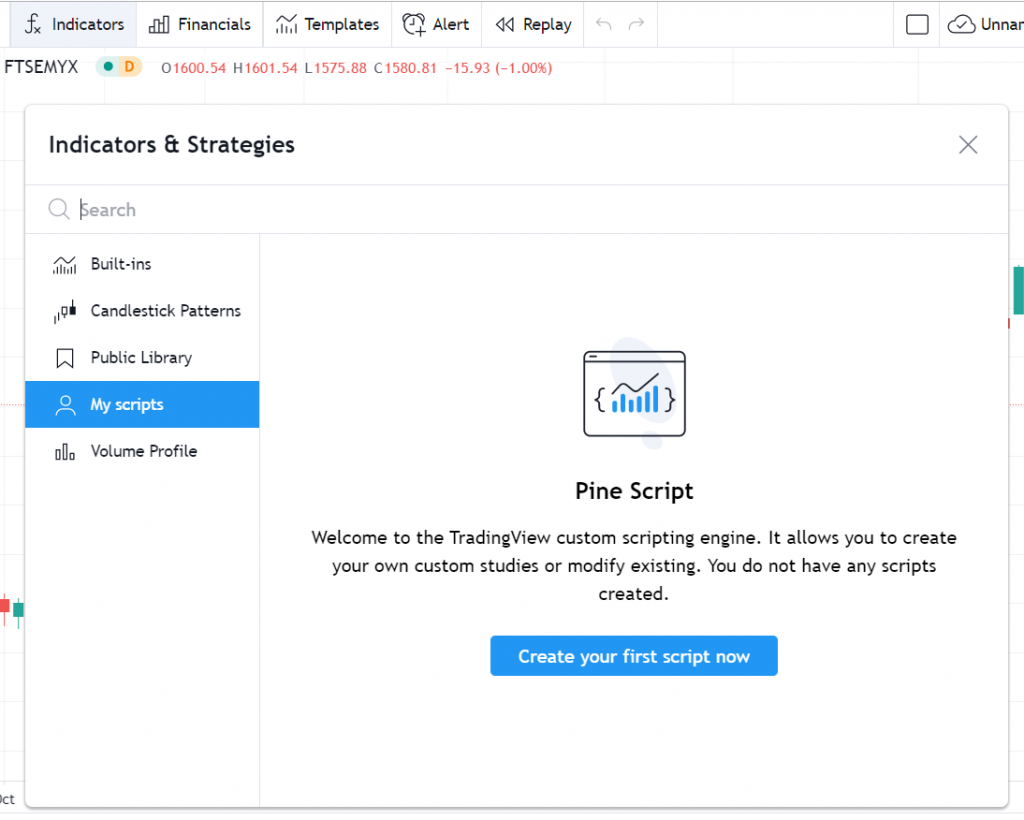
Based on the image above, you can go to Indicator and search for My Scripts. Here, you can start creating your Pine Script.
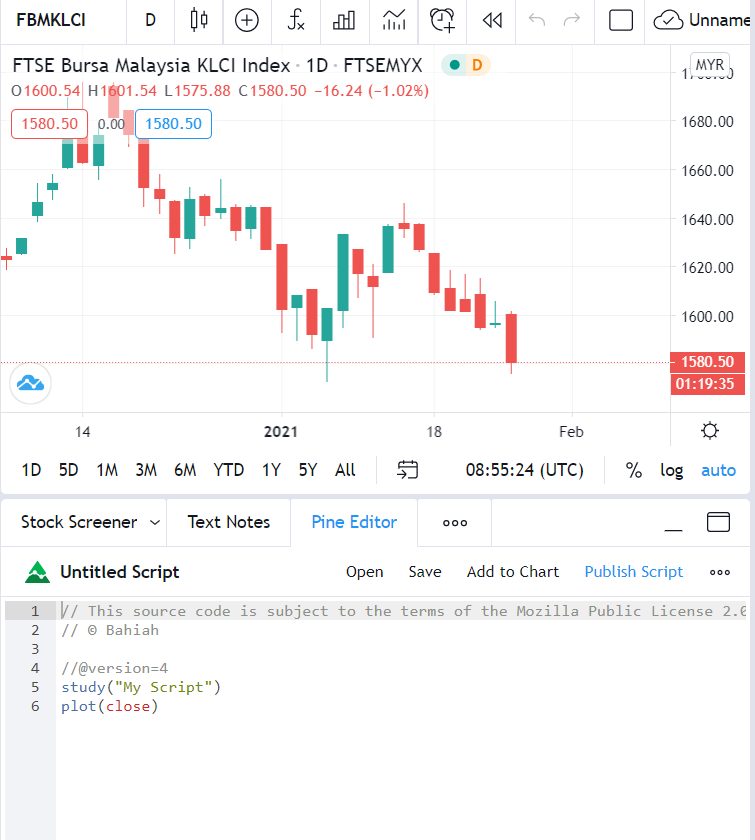
Next, you can click on Pine Editor to enter your script. Here, it has defaulted to version=4 (the latest), study("My Script") and plot(close). However, we will not use these defaults.
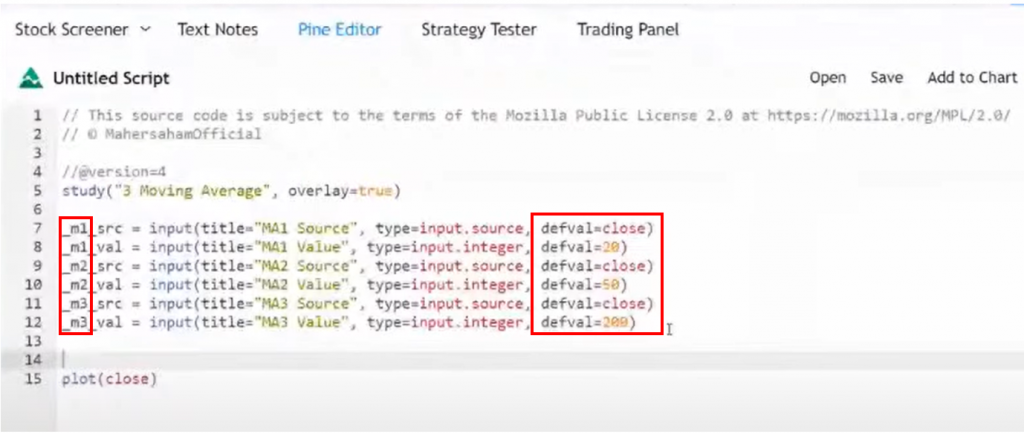
Based on the image above, you just need to follow the Pine Script that Mahersaham has shown above.
For example: study("3 Moving Average", overlay=true)
For the moving average type, enter m1, m2, and m3 with defval of 20, 50, and 200 based on the analysis you wish to conduct.
For example, the variables:
_m1_src = input(title="MA1 Source",type=input.source,defval=close)
_m1_val = input(title="MA1 Value", type=input.integer, defval=20)
_m2_src = input(title="MA2 Source", type=input.source, defval=close)
_m2_val = input(title="MA2 Value", type=input.integer, defval=50)
_m3_src = input(title="MA3 Source", type=input.source, defval=close)
_m3_val = input(title="MA3 Value", type=input.integer, defval=200)
Calculating Simple Moving Average
It is straightforward. We will use sma. You can see the example below:
Source: close
ma_1 = sma(_m1_src, _m1_val)
ma_2 = sma(_m2_src, _m2_val)
ma_3 = sma(_m3_src, _m3_val)
Plot
For the plot section, we will plot each moving average one by one.
For example:
plot(ma_1, color=color.yellow, linewidth=1)
plot(ma_2, color=color.red, linewidth=2)
plot(ma_3, color=color.green, linewidth=3)
Colour: This sets the line colour.
Linewidth: This parameter is used to differentiate lines even though the colours are already different.
After you have finished entering the required parameters, you need to click save and enter a name for your script.
Then click Add to Chart to add it to your chart.
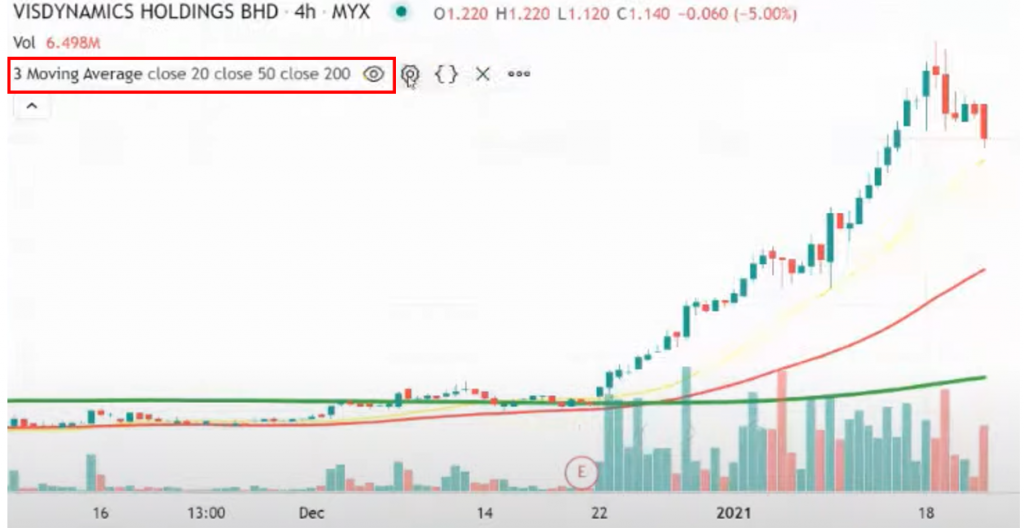
As you can see in the image above, after we add to chart, only the 3 moving averages appear — close 20, close 50, and close 200.
So you have combined 3 indicators into just 1 indicator.
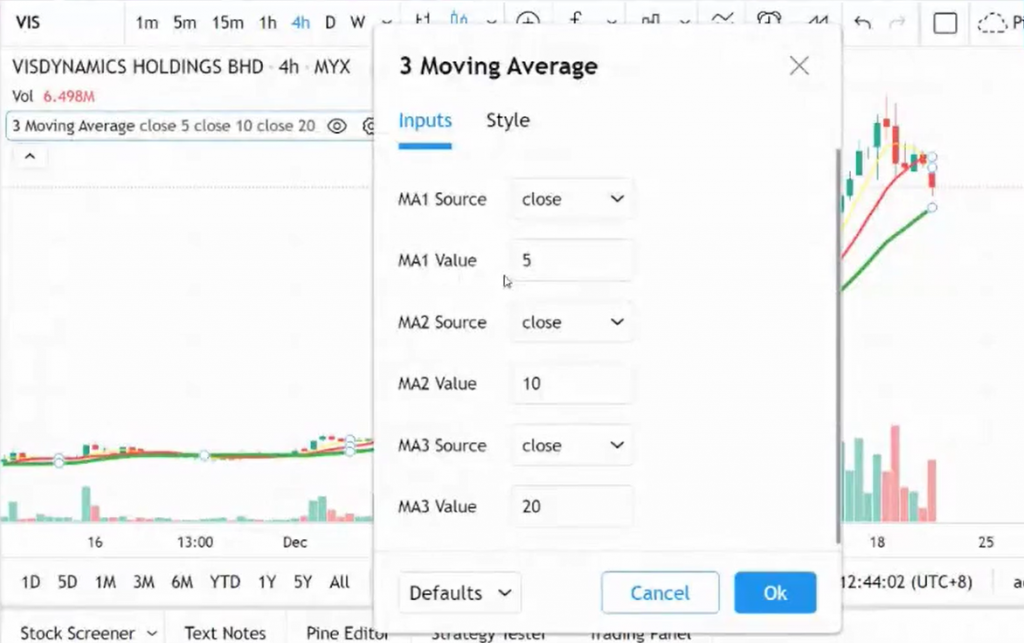
You can also adjust the input values depending on your own analysis. For instance, I have set the MA values to 5, 10, and 20.
Setting Alerts
The next step is to create an alert so you know when a counter meets the criteria you want.
Here is the script for setting an alert:
_3MA_condition = (_m1_src > _m1_val) and (_m2_src > _m2_val) and (_m3_src > _m3_val)
alertcondition(_3MA_condition, title="Price Daily under 3 Moving Average")
For more advanced learning, you can watch the video on YouTube that I have attached below.
Pine Script Reference
Below is the Pine Script reference for you to follow:
// This source code is subject to the terms of the Mozilla Public License 2.0 at https://mozilla.org/MPL/2.0/// MahersahamOfficial.
//@version=4
study("3 Moving Average", overlay=true)
_m1_src = input(title="MA1 Source",type=input.source,defval=close)
_m1_val = input(title="MA1 Value", type=input.integer, defval=20)
_m2_src = input(title="MA2 Source", type=input.source, defval=close)
_m2_val = input(title="MA2 Value", type=input.integer, defval=50)
_m3_src = input(title="MA3 Source", type=input.source, defval=close)
_m3_val = input(title="MA3 Value", type=input.integer, defval=200)
ma_1 = sma(_m1_src, _m1_val)
ma_2 = sma(_m2_src, _m2_val)
ma_3 = sma(_m3_src, _m3_val)
plot(ma_1, color=color.yellow, linewidth=1)
plot(ma_2, color=color.red, linewidth=2)
plot(ma_3, color=color.green, linewidth=3)
_3MA_condition = (_m1_src > _m1_val) and (_m2_src > _m2_val) and (_m3_src > _m3_val)
alertcondition(_3MA_condition, title="Price Daily under 3 Moving Average")
Conclusion
In conclusion, there is an easier method for you to use multiple indicators at the same time. One of them is by using Pine Script.
This will make your stock analysis easier and faster.
Watch the video below to learn more clearly about Pine Script.
Hope this article is beneficial for you.
Don't forget to COMMENT, LIKE, AND SHARE!
Frequently Asked Questions (FAQ)
1. What is Pine Script and what is it used for?
Pine Script is a dedicated programming language for TradingView that allows you to create custom indicators, strategies, and alerts. It makes using multiple indicators at once much easier.
2. Do I need programming knowledge to use Pine Script?
Not necessarily. Pine Script is designed to be easy to learn even for beginners. TradingView also provides many example scripts that can be used directly or modified according to your needs.
3. How does Pine Script help with stock analysis?
Pine Script allows you to combine multiple indicators into a single script, create automatic alerts, and backtest strategies. This speeds up your stock analysis process significantly.
4. Where can I learn more about Pine Script?
You can learn through TradingView's official documentation, tutorials on the Mahersaham YouTube channel, and also through the Pine Script Part 2 article on the Mahersaham website for more in-depth learning.
Ready to start learning about stocks and investing? Open a CDS account with Mahersaham today. Download our free stock basics ebook for a complete beginner's guide.